查看已設定喚醒電腦的裝置
powercfg /devicequery wake_armed
查看可程式喚醒電腦的裝置
powercfg /devicequery wake_programmable
1. powercfg -lastwake 查看是誰起動 windows.
2. 裝置管理員 -> 內容 -> 電源管理 -> 取消勾選「允許這個裝置喚醒電腦」
3. 控制台 -> 電源選項 -> 目前電源計劃 -> 變更計劃設定 -> 變更進階電源設定 -> 睡眠 -> 允許喚醒計時器 -> 停用
參考 Powercfg 命令列選項
2016年7月11日 星期一

2016年7月7日 星期四
在右鍵選單加上鎖定目錄,防止檔案刪除修改
有些檔案,像早期專案文件資料,個人記錄,或是圖片影音檔等。我們不希望不小心修改或刪除,此時可利用 Windows icacls 設定檔案或目錄的 DACLs 成唯讀,不可刪除,也不可修改。在命令模式下指令,就可以「鎖定」C:\TEMP\A 這個目錄。
要取回異動的指命如下
當然也可以利用右鍵選單->內容->安全性->逐一設定權限,但不論是對指令,或是用滑鼠點選,太複雜也太繁鎖了,所以,我們就藉由 reg 檔來把上述的指令包進去,在右鍵選項上,建立兩個新的項目 Lock Folder 及 UnlockFolder。
LockFolder.reg
UnlockFolder.reg
檔案可由 Github 直接下載。直接註冊這兩個 reg 檔,就可以使用了。
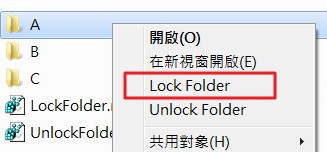
1. 在目錄 A 的右鍵選單點 Lock Folder
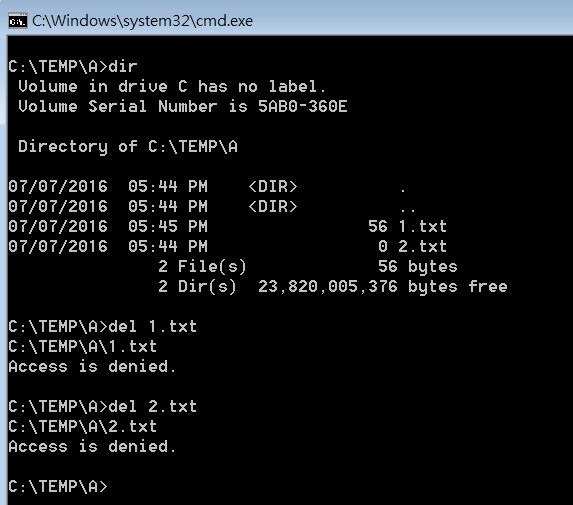
2. 測試檔案,果然不能刪除。
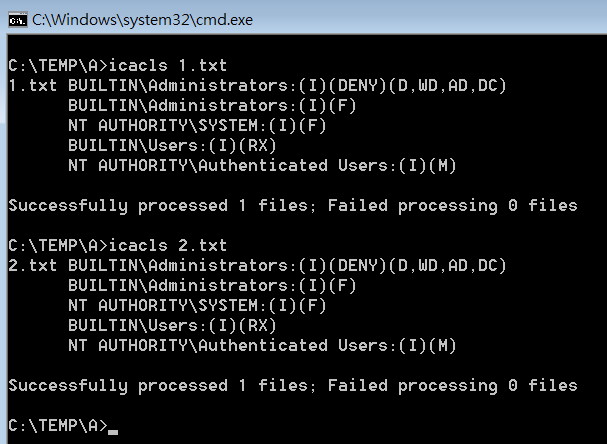
3. 用 icacls 查看檔案及目錄的 DACLs
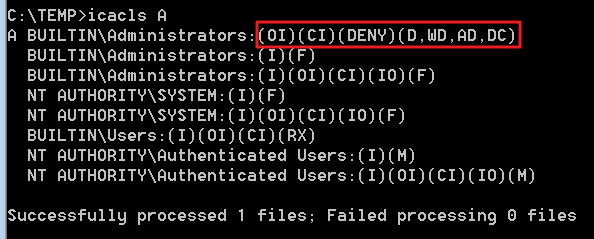
4. 紅色框就是 Lock Folder 加入的設定
5.Unlock Folder 解除鎖定
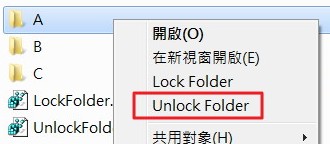
6. 再檢查檔案及目錄的 DACLs,可以發現,已經沒有剛加入的設定了。
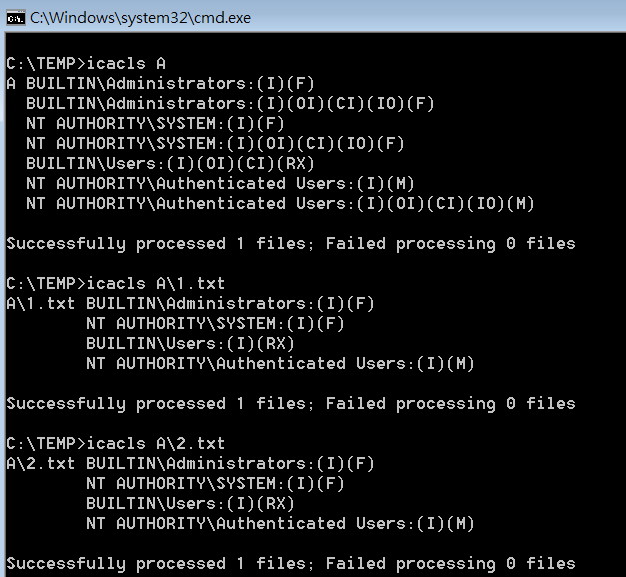
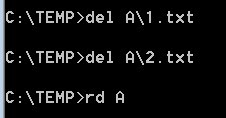
7. 此時就可以正常刪除檔案及目錄。
這裡用到的 icacls 指令說明如下
LockFolder:
icacls %1 /deny administrators:(OI)(CI)(DE,DC,WD,AD) /T
Unlock Folder:
icacls %1 /remove:d administrators /T
注意:
此處用 administrators 這個 ID 作 DACLs 設定的對象,如果系統有作過不同的 ID 權限,則必需另外指定合適的 ID ,可將兩個檔案中的 administrators 修改成新的 ID。
icacls C:\TEMP\A /deny administrators:(OI)(CI)(DE,DC,WD,AD) /T
要取回異動的指命如下
icacls C:\TEMP\A /remove:d administrators /T
當然也可以利用右鍵選單->內容->安全性->逐一設定權限,但不論是對指令,或是用滑鼠點選,太複雜也太繁鎖了,所以,我們就藉由 reg 檔來把上述的指令包進去,在右鍵選項上,建立兩個新的項目 Lock Folder 及 UnlockFolder。
LockFolder.reg
Windows Registry Editor Version 5.00

[HKEY_CLASSES_ROOT\Directory\shell\lockfolder]
@="Lock Folder"

[HKEY_CLASSES_ROOT\Directory\shell\lockfolder\command]
@="icacls %1 /deny administrators:(OI)(CI)(DE,DC,WD,AD) /T"
UnlockFolder.reg
Windows Registry Editor Version 5.00

[HKEY_CLASSES_ROOT\Directory\shell\unlockfolder]
@="Unlock Folder"

[HKEY_CLASSES_ROOT\Directory\shell\unlockfolder\command]
@="icacls %1 /remove:d administrators /T"
檔案可由 Github 直接下載。直接註冊這兩個 reg 檔,就可以使用了。
1. 在目錄 A 的右鍵選單點 Lock Folder
2. 測試檔案,果然不能刪除。
3. 用 icacls 查看檔案及目錄的 DACLs
4. 紅色框就是 Lock Folder 加入的設定
5.Unlock Folder 解除鎖定
6. 再檢查檔案及目錄的 DACLs,可以發現,已經沒有剛加入的設定了。
7. 此時就可以正常刪除檔案及目錄。

這裡用到的 icacls 指令說明如下
LockFolder:
icacls %1 /deny administrators:(OI)(CI)(DE,DC,WD,AD) /T
/deny: Explicitly denies administrators access rights
(OI): object inherit
(CI): container inherit
DE: delete
DC: delete child
WD: write data/add file
AD: append data/add subdirectory
/T: all specified files in the current directory and its subdirectories.
Unlock Folder:
icacls %1 /remove:d administrators /T
/remove:d removes all occurrences of denied rights to administrators
/T: all specified files in the current directory and its subdirectories.
注意:
此處用 administrators 這個 ID 作 DACLs 設定的對象,如果系統有作過不同的 ID 權限,則必需另外指定合適的 ID ,可將兩個檔案中的 administrators 修改成新的 ID。
Add Lock Folder on context menu
Sometime we don't want to modify or delete "history" file accidentally. How can we do ? Simple, by using icacls we can set different DACLs for files even directories. But if we only need to lock one directory and all its files, we can use following command to "lock" C:\TEMP\A directory.
If we want to "unlock" C:\TEMP\A directory. Use the following command
It will be much useful if we add these two command as context menu items and simply use mouse right click to select one command on selected folder.
LockFolder.reg
UnlockFolder.reg
Download the two reg files on Github
Add these two reg. and than we have two addition items on context menu.
1. Click on A folder and right click to select Lock Folder.
2. Open command prompt and try to delete file or folder.
3.Use icacls to check file and folder's DACLs.
4. The red block is what Lock Folder added.
5. Unlock Folder.
6. Check file DACLs again.
7. Delete files and folder. This time we can successfully delete them.
In case you want to know what exactly these command means.
LockFolder:
icacls %1 /deny administrators:(OI)(CI)(DE,DC,WD,AD) /T
Unlock Folder:
icacls %1 /remove:d administrators /T
Note:
We use "administrators " as the SID. If you want to use other ID, you need to modify the reg files, replace "administrators" and check if it working correctly.
icacls C:\TEMP\A /deny administrators:(OI)(CI)(DE,DC,WD,AD) /T
If we want to "unlock" C:\TEMP\A directory. Use the following command
icacls C:\TEMP\A /remove:d administrators /T
It will be much useful if we add these two command as context menu items and simply use mouse right click to select one command on selected folder.
LockFolder.reg
Windows Registry Editor Version 5.00

[HKEY_CLASSES_ROOT\Directory\shell\lockfolder]
@="Lock Folder"

[HKEY_CLASSES_ROOT\Directory\shell\lockfolder\command]
@="icacls %1 /deny administrators:(OI)(CI)(DE,DC,WD,AD) /T"
UnlockFolder.reg
Windows Registry Editor Version 5.00

[HKEY_CLASSES_ROOT\Directory\shell\unlockfolder]
@="Unlock Folder"

[HKEY_CLASSES_ROOT\Directory\shell\unlockfolder\command]
@="icacls %1 /remove:d administrators /T"
Download the two reg files on Github
Add these two reg. and than we have two addition items on context menu.
1. Click on A folder and right click to select Lock Folder.
2. Open command prompt and try to delete file or folder.
3.Use icacls to check file and folder's DACLs.
4. The red block is what Lock Folder added.
5. Unlock Folder.

6. Check file DACLs again.
7. Delete files and folder. This time we can successfully delete them.
In case you want to know what exactly these command means.
LockFolder:
icacls %1 /deny administrators:(OI)(CI)(DE,DC,WD,AD) /T
/deny: Explicitly denies administrators access rights
(OI): object inherit
(CI): container inherit
DE: delete
DC: delete child
WD: write data/add file
AD: append data/add subdirectory
/T: all specified files in the current directory and its subdirectories.
Unlock Folder:
icacls %1 /remove:d administrators /T
/remove:d removes all occurrences of denied rights to administrators
/T: all specified files in the current directory and its subdirectories.
Note:
We use "administrators " as the SID. If you want to use other ID, you need to modify the reg files, replace "administrators" and check if it working correctly.
訂閱:
意見 (Atom)